Fullwhite Team·
How to Use Zoom Lighting for Video Calls Without a Ring Light
Quick Summary
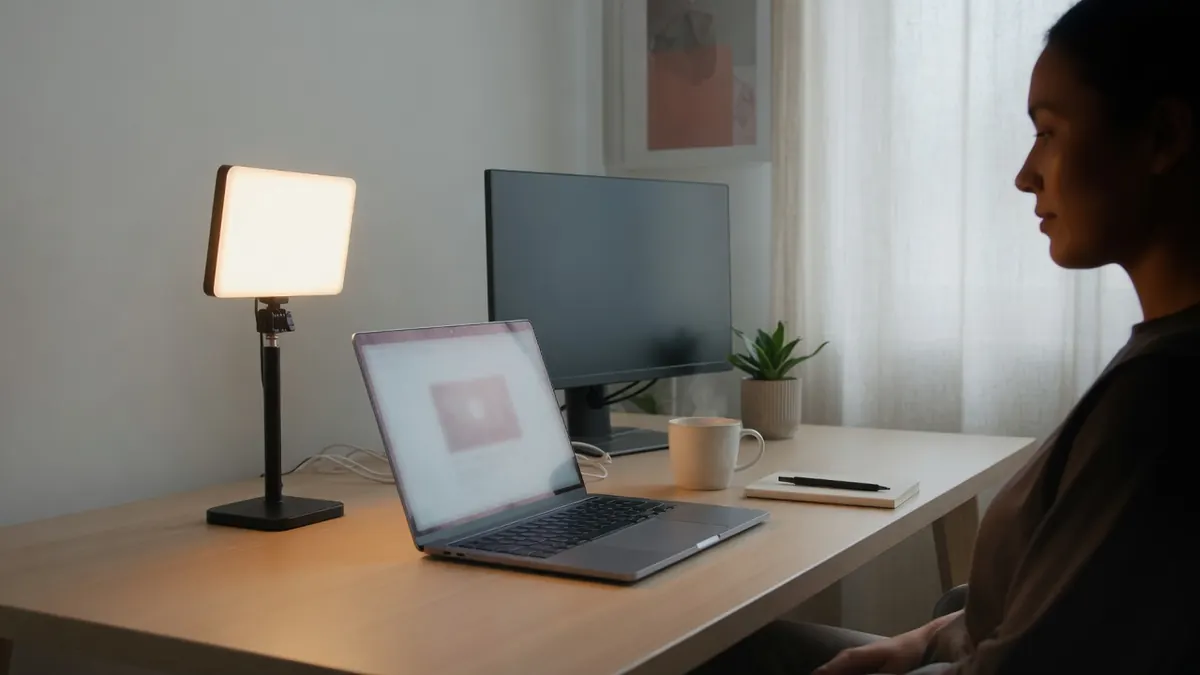
Zoom lighting turns your second screen or laptop into a soft fill light for meetings. You open a browser tool, match brightness and color temperature to your room, go fullscreen, and keep the field on while you talk on Zoom, Google Meet, or Teams—no app install and no change to system brightness.
Why Video Call Lighting Matters
Webcam video often fails for the same reason photos fail: the subject is under-lit relative to the background. Overhead office LEDs cast shadows under the eyes. A bright window behind you forces the camera to darken your face. A ring light helps, but many people join calls from hotel desks, shared offices, or temporary setups where dedicated gear is not available.
A bright, even field on a monitor can act as a soft key or fill light. It will not replace a full studio, and it cannot fix a camera that points into a window. Used well, it raises face exposure, softens hard shadows, and keeps the look consistent from call to call.
Key Takeaways
- Place the lit screen slightly off-axis in front of you, not behind you.
- Start warm for evening rooms; switch cooler when the room already looks daylight-balanced.
- Raise brightness gradually so the webcam can re-expose without blowing out skin tones.
- Use fullscreen so UI chrome does not distract or cast uneven edges into the frame.
- Keep the display awake when the browser supports screen wake lock; otherwise nudge the cursor occasionally.
- Page-level brightness controls do not change OS display brightness.
What You Need Before You Start
You need a modern browser with fullscreen support, a display you can point toward your face, and your meeting app already open or ready. A second monitor is ideal: one panel for the call, one panel as the light. A single laptop works if you angle the lid carefully or place the machine on a stack of books so the panel faces you from a better height.
Optional but useful:
- A matte or slightly angled panel so you are not staring into a perfect mirror reflection
- Closed curtains if a window behind you is much brighter than your face
- A quick camera preview in Zoom, Meet, or Teams before you go live
How to Set Up Zoom Lighting Step by Step
1. Open the Zoom Lighting tool
Go to Fullwhite Zoom Lighting. The page loads a soft light field in the browser. The default is a warm indoor fill (about 4000K feel) at full page brightness so evening desks look natural without deep orange cast.
2. Match the light to the room
Use the presets or the color temperature control:
| Preset | Approximate feel | Best when |
|---|---|---|
| Cool | ~6500K daylight | Grey offices, cool LEDs, overcast window light |
| Neutral | ~5600K soft key | Daylight-balanced soft fill that stays camera-friendly |
| Warm | ~4000K indoor (default) | Evening rooms, warm lamps, soft indoor fill |
These values are display-feel mappings, not lab-calibrated color temperature. Treat them as practical starting points. If your face still looks blue next to a tungsten lamp, warm the field. If skin looks yellow against cool office lights, move toward Neutral or Cool.
3. Set brightness without fighting the camera
Use the on-page brightness control. Fullwhite adjusts the light field on the page; it does not rewrite your OS display brightness. That is intentional: you can dim the light for the camera while keeping system settings unchanged for other apps.
Start lower than you think you need, open your meeting app’s preview, then raise brightness until facial detail improves. Stop before highlights on forehead or glasses become hard white blobs. Many webcams auto-expose; give them a few seconds after each change.
4. Keep the screen from sleeping mid-call
Enable Keep screen awake when the control is available. Fullwhite uses the browser Screen Wake Lock API when the platform supports it. When wake lock is unavailable, the toggle fails silently and the rest of the tool still works. On those devices, a small pointer movement every so often is enough to prevent sleep during long meetings.
5. Enter fullscreen and place the panel
Click Fullscreen or press F or Space. In fullscreen, chrome hides so only the light field remains. Place the lit panel:
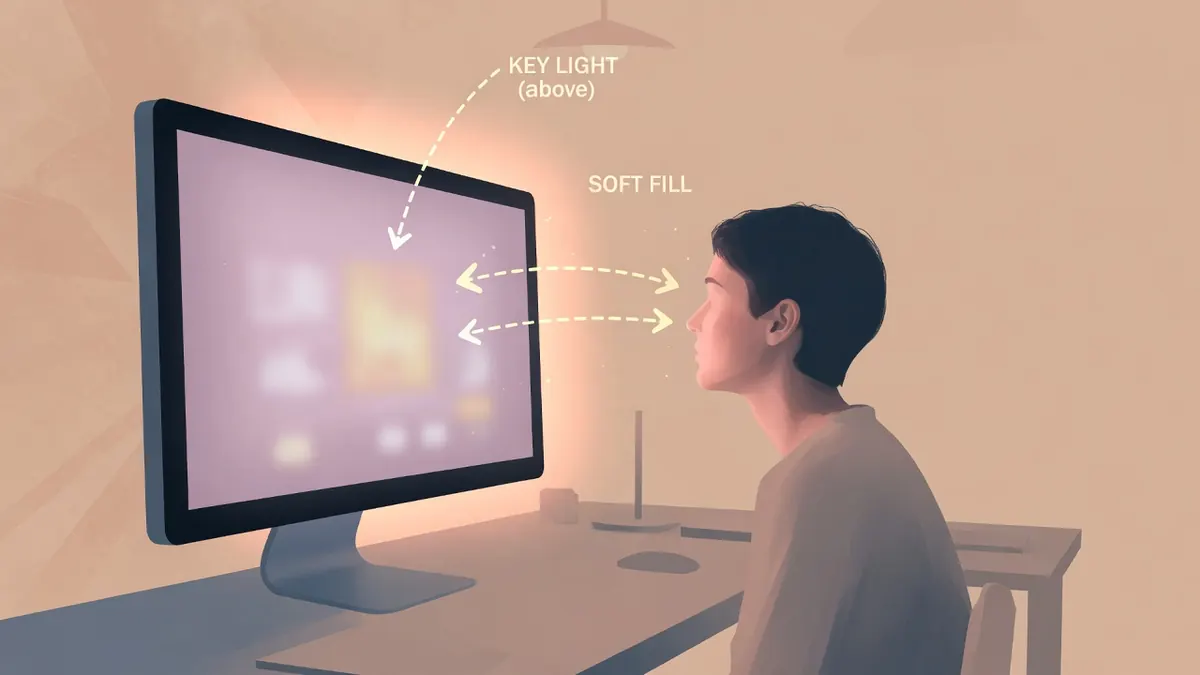
- Slightly in front of you and a little above eye line when possible
- Off to one side if a second monitor is available, so you keep eye contact with the camera
- Close enough to raise exposure without filling the entire background of your shot
Avoid putting the bright field directly behind your head. That creates silhouette lighting and makes the camera underexpose your face.
6. Fine-tune during the first minute of the call
Once the meeting starts, glance at the self-view once. If you look flat, raise brightness slightly or move the panel closer. If you look orange or blue relative to the room, nudge temperature. Then hide self-view and work. Constant self-monitoring is worse for presence than a one-time setup.
Practical Placement Tips That Improve Results
Distance first, brightness second. Moving the panel closer often improves face light more cleanly than maxing brightness on a distant screen.
One soft source beats two competing sources. If a harsh desk lamp is still on, either dim it or turn it off so the monitor fill is not fighting a hard shadow.
Mind reflections. Glasses and glossy screens can throw a bright rectangle into the frame. Angle the light panel a few degrees, or lower brightness until the reflection softens.
Mobile browsers vary. Fullscreen behavior and wake lock support differ across phones and tablets. For critical client calls, prefer a laptop or external monitor when you can.
When Zoom Lighting Helps—and When It Does Not
Helpful for
- Short-notice meetings without a ring light
- Shared or hotel desks
- Softening under-eye shadows from overhead LEDs
- Stabilizing face exposure when the room is a bit dim
Less ideal when
- A bright window sits behind you and you cannot reframe
- You need a hard beauty light look with catchlights from a real ring light
- The only available screen is too small or too far to raise exposure
- You require studio-grade color accuracy for product demos
In those cases, fix framing and background light first. A white screen tool cannot outrun physics.
How Zoom Lighting Differs from a Plain White Screen
A plain fullscreen white page can work as emergency fill. Zoom lighting adds the controls people actually need on calls: page brightness, color temperature (or Cool / Neutral / Warm presets), and optional wake lock so the light stays up for the length of the meeting. If you only need a solid white field for cleaning a panel or a quick check, a white screen page is enough. For meetings, the extra controls usually produce a more usable face light.
FAQ
Is browser zoom lighting as good as a ring light?
It is a practical substitute for soft fill, not a full replacement. A dedicated light often has higher output and more flexible placement. A monitor fill still improves many under-lit webcam shots when gear is not available.
Will this change my computer’s system brightness?
No. Brightness and temperature adjustments stay on the page. Your OS display setting is left alone.
Does Keep screen awake work on every browser?
No. When the Screen Wake Lock API is unsupported or blocked, Fullwhite fails silently so the tool remains usable. You can still light the call; you may need an occasional pointer move on long sessions.
Can I use this with Google Meet and Microsoft Teams?
Yes. The light is just a bright browser page. Any video app that uses your webcam benefits from better ambient light on your face.
Should I use Cool, Neutral, or Warm?
Start with Warm for evening indoor rooms, Neutral for balanced soft key, and Cool for grey offices or daylight-heavy spaces. Adjust from the self-view, not from the label alone.
Conclusion
Reliable zoom lighting is less about buying gear and more about controlling a soft, consistent light near your face. Open the browser tool, match temperature to the room, set brightness from camera preview, enable wake lock when available, then fullscreen and place the panel slightly in front of you. For a ready-to-use meeting light with brightness, temperature, and optional keep-awake, use Fullwhite Zoom Lighting.