Fullwhite Team·
How to Run a Dead Pixel Test on Your Monitor in a Browser
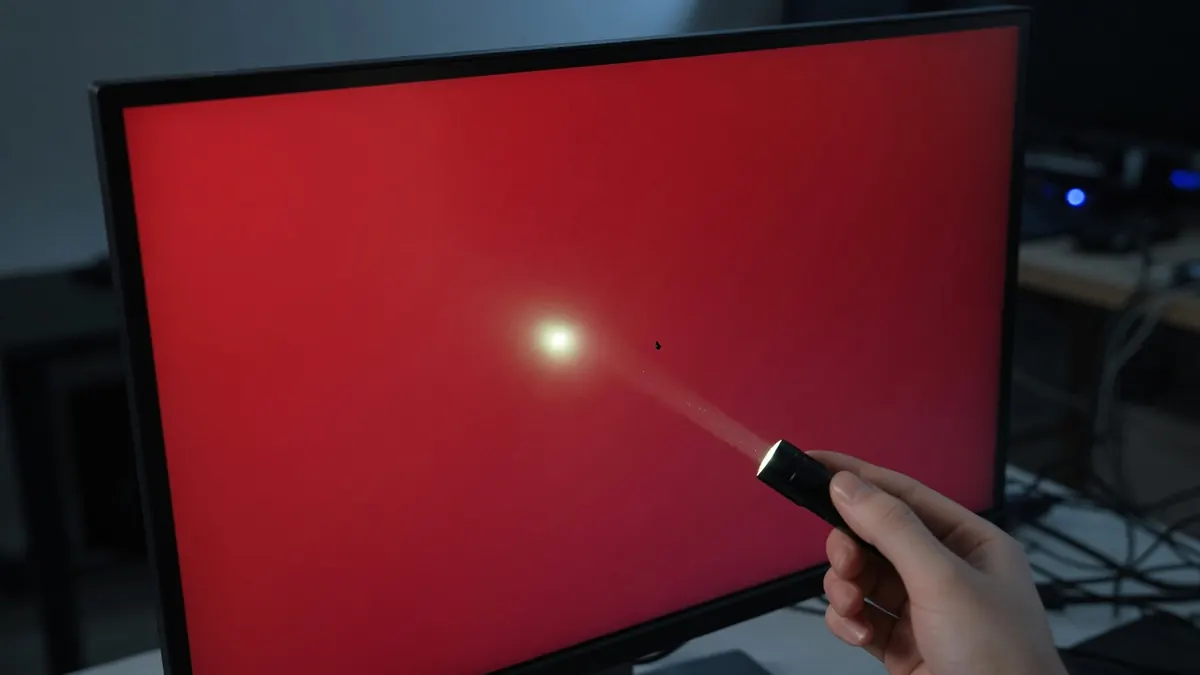
Quick Summary
A dead pixel test fills the screen with solid colors so defective subpixels stand out. In a browser tool you cycle white, black, red, green, and blue—ideally fullscreen with UI hidden—and scan the panel slowly. Dead pixels stay black on every color; stuck pixels stay lit in one primary color when the field should change.
Why Run a Dead Pixel Test?
New monitors, refurbished laptops, and phones fresh from a box can ship with pixel defects. Older panels can develop them over time. Manufacturers and retailers often define how many defects are acceptable under warranty, and those policies vary by brand and region. A quick visual test will not replace a service center report, but it gives you a clear look before the return window closes or before you accept a used device.
Solid-color fields work because the eye is good at spotting a fixed bright or dark speck against a uniform background. Patterns, desktops, and videos hide the same defects.
Key Takeaways
- Use a fixed sequence: white → black → red → green → blue.
- Fullscreen and hide on-screen chrome so UI does not mask edges.
- Dead pixel: stays black on all colors. Stuck pixel: stays a primary color (or bright) when it should change.
- Scan slowly in a dim room; stand at a normal viewing distance, then check corners.
- Browser tests detect; they do not “repair” pixels with flash animations in Fullwhite v1.
- For purchase inspections, document what you see with photos before you wipe the device or leave the store policy window.
Dead Pixel vs Stuck Pixel (Plain Language)
| Type | What you usually see | On a solid field |
|---|---|---|
| Dead pixel | Dark speck | Remains black on white, red, green, and blue |
| Stuck pixel | Colored speck | Stays red, green, or blue (or stays bright) when the screen shows another color |
| Hot / bright subpixel | Bright speck on dark content | Especially visible on black |
People use these terms loosely. What matters for a practical check is whether a pixel fails to follow the solid color of the rest of the panel. Fullwhite’s dead pixel FAQ uses the same simple split: dead stays black everywhere; stuck stays a primary when it should not.
This guide does not diagnose hardware failure modes beyond that visual check, and it is not a warranty policy.
What You Need
- The display you want to inspect (external monitor, laptop panel, or tablet)
- A current browser with fullscreen support
- A few quiet minutes and a dimmer room so glare does not hide defects
- Optional: a microfiber cloth if dust is mimicking dead pixels
Clean the glass lightly before you panic. Dust and coating smudges create false alarms, especially on pure white.
How to Run a Dead Pixel Test Step by Step
1. Open the Dead Pixel Test tool
Go to Fullwhite Dead Pixel Test. The tool uses a fixed color order: White → Black → Red → Green → Blue. That order covers dark defects on light fields and stuck primaries on opposite colors.
2. Enter fullscreen
Press Fullscreen, F, or use the stage control so the solid color fills the panel. Browser chrome and OS docks can hide edge defects if you stay windowed.
3. Hide the instruction bar
Press H (or the hide control) so labels and buttons do not cover part of the screen. You want an uninterrupted field while you scan.
4. Cycle colors deliberately
Use any of these methods:
- On-screen next/previous controls
- ← / → arrow keys
- Number keys 1–5 to jump to a color in the sequence
- Auto play (A or the Auto play button) to advance about every 3 seconds, including while fullscreen
Manual stepping is better when you want to stare at one field. Auto play helps when you want a hands-free loop while you lean in and scan.
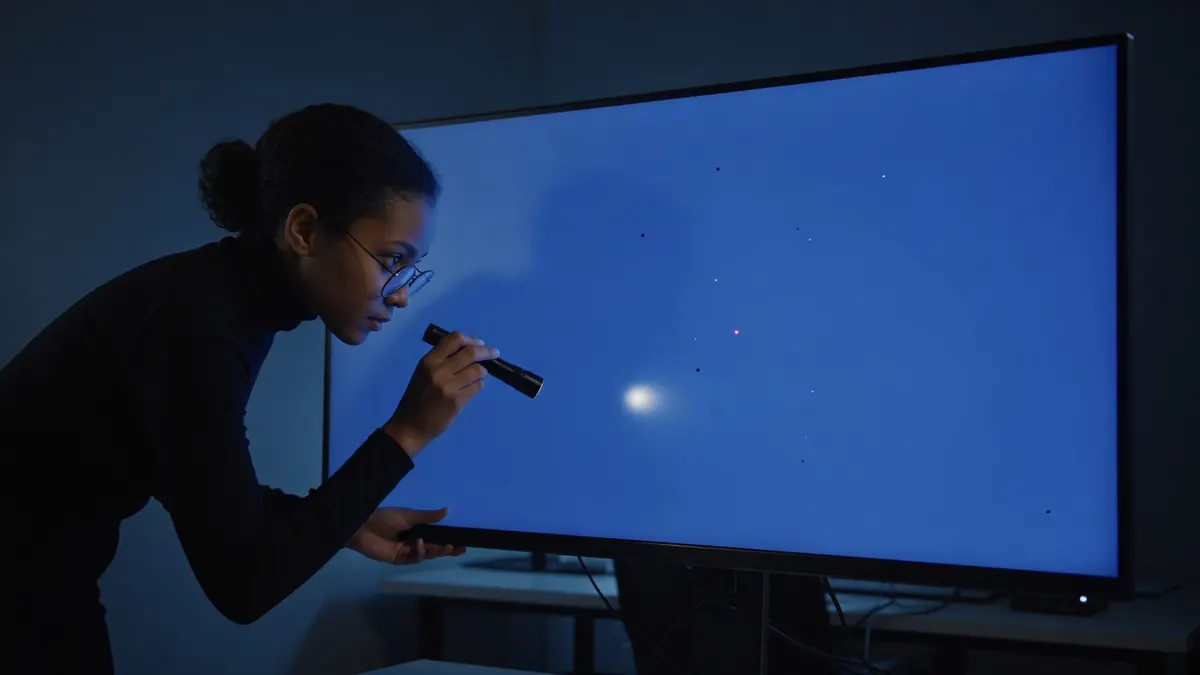
5. Scan the panel slowly
Work in a calm grid:
- Start at the center at normal viewing distance.
- Sweep left to right, then move down a band and repeat.
- Check each corner and the extreme edges.
- Change color and repeat. Do not rush the black field—bright stuck pixels show clearly there.
If you think you found a defect, mark the approximate location mentally (or with a removable sticky on the bezel, not on the glass), change colors, and confirm it stays put.
6. Interpret what you see
- A speck that is black on every color → treat as a dead (dark) pixel candidate.
- A speck that stays red while the screen is green or blue → stuck primary candidate.
- A speck that moves when you wipe the screen → dust or residue, not a pixel defect.
- Temporary image retention after static UI → wait and retest; retention is not the same as a dead pixel.
7. Decide your next action
If you are within a return or DOA window, photograph the defect on more than one solid color and check the seller or manufacturer pixel policy. If the device is out of warranty, decide whether the defect sits in your normal viewing area enough to matter. Fullwhite does not flash-repair stuck pixels and does not export defect reports in v1—it is detection only.
Tips That Improve Accuracy
Dim the room lights. Reflections create bright points that look like hot pixels.
Disable heavy blue-light filters temporarily if they tint solid colors enough to confuse your eye. You can turn them back on after the check.
Test at native resolution. Scaled or letterboxed windows can hide edge columns.
Do not press hard on LCD panels. Pressure can create temporary blotches and, on some panels, real damage.
Retest after cleaning. Many “defects” disappear with a proper wipe.
What This Browser Test Does Not Do
- It does not guarantee warranty coverage.
- It does not replace manufacturer diagnostics.
- It does not include gradient uniformity calibration or GPU benchmarks.
- It does not run stuck-pixel “repair” animations or generate a formal defect map in Fullwhite v1.
If you need a service report, use the vendor’s process. If you need a fast pre-purchase or home check, solid-color scanning is still the standard first pass.
FAQ
How long should a dead pixel test take?
A careful pass across five colors usually takes a few minutes per display. Rushing misses edge defects.
Does Fullwhite fix stuck pixels?
No. The tool is detection only—no flash repair animations or defect report export in v1.
Why is the color order fixed?
White → black → RGB is a compact set that reveals dark pixels on light fields and stuck primaries on opposing colors without an endless palette.
How does Auto play work?
Auto play cycles White → Black → Red → Green → Blue about every three seconds, including in fullscreen. Press A or the Auto play control to toggle.
Can I test a phone screen?
Yes, open the page on the phone and use fullscreen when the browser allows it. Desktop browsers are often easier for external monitors.
Conclusion
A dead pixel test is a structured look at solid color fields, not a mysterious diagnostic. Fullscreen the sequence, hide the UI, scan slowly, and confirm whether a speck stays black on every color or stuck on a primary. When you want that flow in the browser with keyboard controls and optional auto play, open Fullwhite Dead Pixel Test.