Fullwhite Team·
How to Download a Pure White PNG Background from 1080p to 4K
Quick Summary
A pure white PNG is a blank #FFFFFF image you can drop into slides, mockups, photo layers, and templates. With a browser white image tool, you pick 1080p, 1440p, or 4K (or a custom size), generate the file locally with canvas, and download it—no Photoshop, no account, and no upload to a server.
Why People Need a Pure White PNG
Searchers usually do not want “almost white” stock photos. They want a reliable solid field for:
- Presentation or thumbnail backgrounds
- Product mockup bases and marketing layouts
- Photo layers where transparency is not required
- Print or digital templates that start from a clean white canvas
- Placeholder frames in design systems
Opening a full design app for one rectangle is slow. Downloading a random web image risks compression artifacts, off-white values, watermarks, or unexpected color profiles. A generated pure white PNG keeps the pixel value simple: full white, full opacity.
Key Takeaways
- Pure white means solid
#FFFFFF, not a light grey or cream photo. - PNG preserves a clean solid fill without JPEG blocking or chroma noise.
- Common export sizes: 1920×1080 (1080p), 2560×1440 (1440p), 3840×2160 (4K).
- Browser generation can stay fully local via canvas—nothing needs to leave your device.
- Very large canvases can hit memory limits on low-end phones; fall back to 1080p if 4K fails.
- Fullscreen color tools and downloadable white images solve different jobs.
What Counts as a “Pure White” Image
For backgrounds and composites, pure white means every pixel is solid white at full opacity. In CSS and most design tools that is #FFFFFF (RGB 255, 255, 255). Off-white, paper textures, and “bright studio” photos may look white in a thumbnail but introduce gradients, noise, or warm/cool casts when you zoom or composite.
Use a pure white PNG when you need a predictable base. Use a textured paper scan only when you want that texture on purpose.
How to Download a Pure White PNG Step by Step
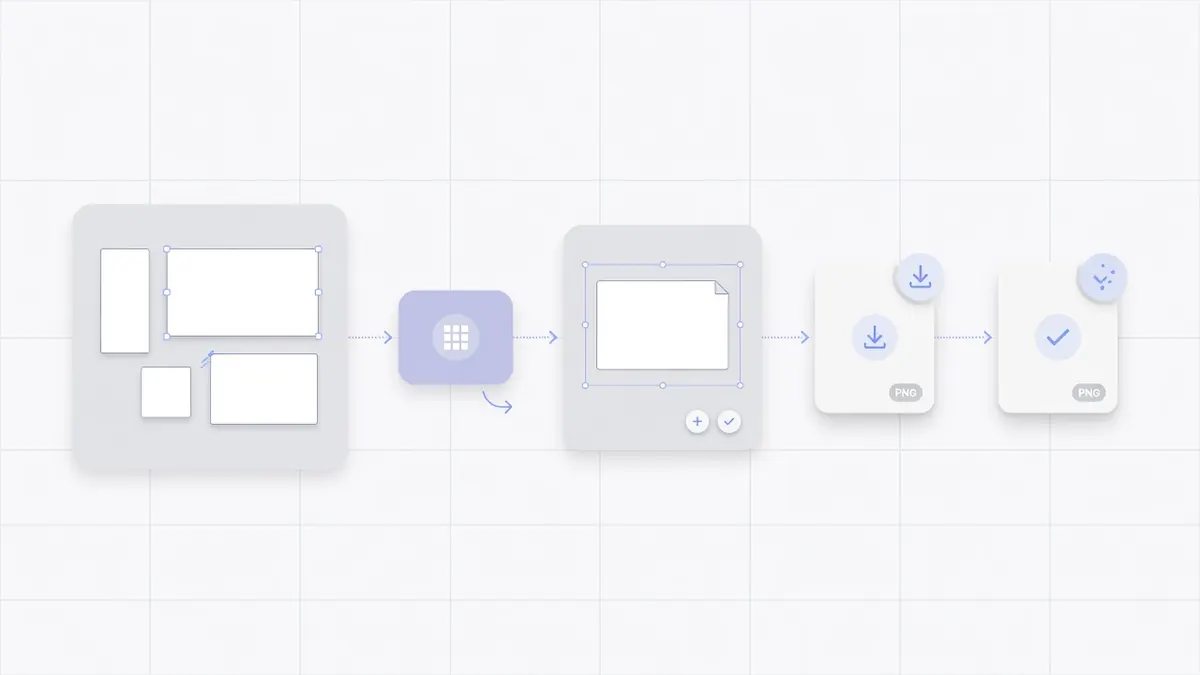
1. Open the White Image tool
Go to Fullwhite White Image. The page is built for export, not for sitting as a light on a second monitor.
2. Choose a resolution
Pick one of the common presets:
| Preset | Size | Typical use |
|---|---|---|
| 1080p | 1920×1080 | Slides, most web graphics, social templates |
| 1440p | 2560×1440 | Sharper desktop work and higher-res mockups |
| 4K | 3840×2160 | Maximum detail, large canvases, high-res exports |
If you need a nonstandard frame, enter a custom width and height when the tool offers that control. Keep both values positive integers; the generator floors invalid values to safe canvas sizes.
3. Download the PNG
Click Download PNG. Fullwhite fills a canvas with pure white (#FFFFFF), encodes a PNG in the browser, and triggers a file save such as white-1920x1080.png. Generation is local: the file is not uploaded to object storage for processing.
4. Drop the file into your workflow
Examples:
- Slides — set the PNG as the slide background, then layer logos and text.
- Photo editors — place the white image as a base layer and build composites above it.
- Mockups — use it as a clean device or poster fill when you need solid white, not transparency.
- Docs and PDFs — insert a full-bleed white plate before export if a tool strips backgrounds oddly.
Which Resolution Should You Choose?
Choose 1080p when the destination is standard HD slides, most websites, or anything that will be scaled down. Files stay small and almost every device can generate them quickly.
Choose 1440p when you work on large monitors and want a bit more headroom without jumping to 4K memory use.
Choose 4K when the asset will be cropped, printed large, or used as a master plate. If download fails on a low-memory phone or older laptop, switch to 1080p. Canvas size is limited by the device, not by a server quota.
You can always downscale a larger white PNG. Upscaling a tiny white image is usually fine for solid color, but starting at the target size avoids tooling quirks in apps that resample backgrounds aggressively.
White Image vs Fullscreen White Screen
These look similar and solve different jobs:
| Need | Better tool |
|---|---|
| A file for Figma, PowerPoint, or Photoshop | White Image (download PNG) |
| Temporary light, cleaning glow, or focus field | Fullscreen white screen |
| Meeting fill with brightness and temperature | Zoom Lighting |
| Solid color inspection without saving a file | Color screen pages |
If you only need light in the room, do not download a PNG. If you need an asset in a project file, do not rely on a live browser tab.
Common Mistakes When Using White Backgrounds
Saving a screenshot of a white page. Screenshots can include UI chrome, OS scaling blur, or not-quite-white values. Prefer a generated solid fill.
Using JPEG for a flat white field. JPEG is built for photos. A solid color can still pick up subtle banding or noise depending on export settings. PNG is the straightforward choice for a pure plate.
Assuming “white” in a stock photo is `#FFFFFF`. Eyedropper a corner before you build a brand template on top of it.
Generating 4K on a constrained device, then blaming the site. Try 1080p first to confirm the workflow, then step up.
Privacy and Local Generation
When a tool generates the PNG with canvas in the browser, the pixel buffer is created on your device and saved through the normal download prompt. Fullwhite’s white image flow is designed that way: no account, and no requirement to upload the file for rendering. That matters if you are on a locked-down work network or simply do not want blank assets traveling through a conversion API.
As with any web page, the site itself still loads over the network. The image payload does not need a server round-trip to exist.
FAQ
Is the pure white PNG uploaded to a server?
On Fullwhite White Image, generation is local via canvas. The PNG is created in the browser and downloaded from a local blob URL.
Why PNG instead of JPG or SVG?
PNG gives a lossless solid raster plate that most design and office tools accept. SVG can also describe a white rectangle, but many upload fields and CMS backgrounds expect a raster file. JPG is a poor default for flat graphics.
Can I get colors other than white as a download?
v1 focuses on pure white downloads. Colored fullscreen pages are separate tools for on-screen use. If you need a colored file, use a design app or extend your own export workflow.
What if 4K download fails?
Switch to 1080p or 1440p. Very large canvases can hit memory limits on low-end devices.
What filename will I get?
Fullwhite names downloads like white-{width}x{height}.png (for example, white-1920x1080.png). Rename freely after save.
Conclusion
A pure white PNG is a small asset with outsized utility: clean slides, predictable mockups, and blank layers without opening a heavyweight editor. Pick the resolution that matches the destination, download a true #FFFFFF PNG from the browser, and keep fullscreen light tools for on-screen jobs. Start here: download a pure white PNG on Fullwhite.