Fullwhite Team·
How to Use a Fullscreen White Screen Online (Plus Color Screens)
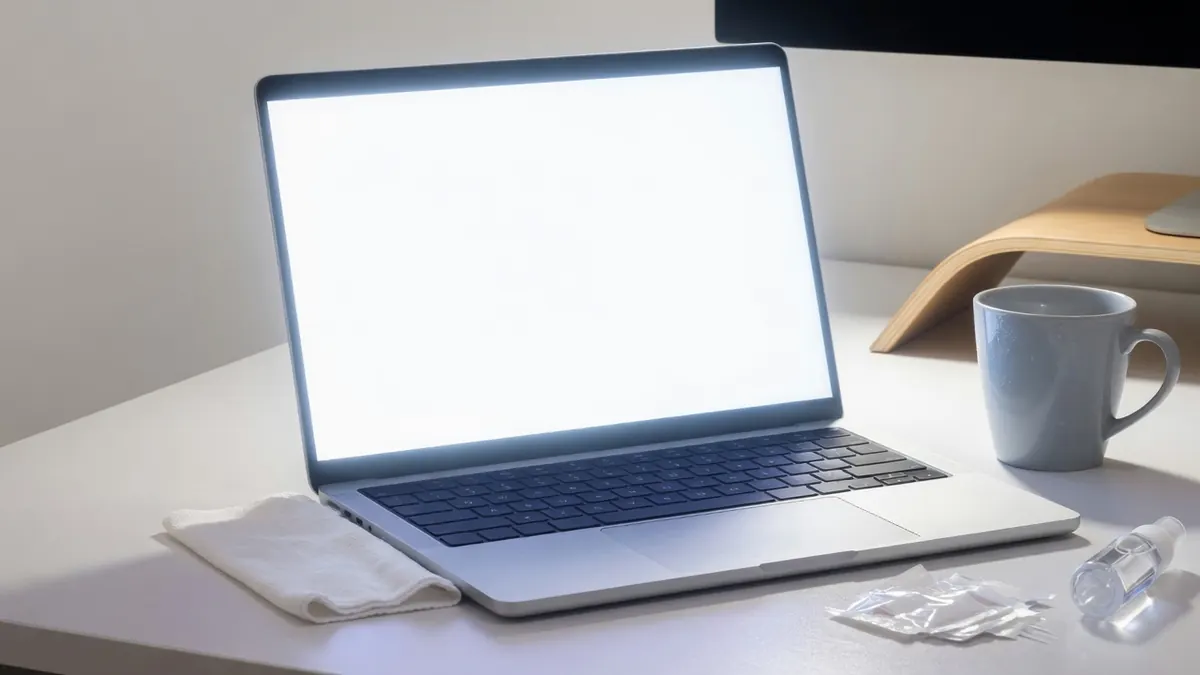
Quick Summary
A fullscreen white screen is a solid white page that fills your display for lighting, cleaning, focus, or quick panel checks. Open a browser white screen tool, enter fullscreen with a click or F / Space, and press Esc to exit. The same pattern works for black, red, green, blue, and other solid colors when you need contrast or inspection fields.
Why People Search for a White Screen Online
The query is simple, and the jobs behind it vary:
- Soft face light when a dedicated lamp is not nearby
- Even backlight to spot dust and smudges while cleaning
- A calm field for tracing, reading, or reducing desktop clutter
- A quick look for obvious backlight issues or defects
- A solid plate for photography or desk setups that need more ambient bounce
You do not need an app install for any of that. A well-built browser page plus the Fullscreen API is enough.
Key Takeaways
- Click the stage or press F / Space to enter fullscreen; Esc exits.
- In fullscreen, UI should hide so you get a clean light field.
- White helps lighting and cleaning; black helps dark rest and bright-pixel spotting; primaries help stuck-pixel checks.
- Zoom Lighting is better than plain white when you need brightness, color temperature, and wake lock for meetings.
- Download a PNG only when you need a file; use the live screen when you need light in the room.
- No account is required for a basic online white screen tool.
What a Fullscreen White Screen Is (and Is Not)
It is a solid #FFFFFF field that can occupy the entire display. It is not a downloadable asset unless you explicitly export one. It is not a calibrated measurement instrument. It will not change your operating system’s global brightness unless you change that yourself.
Think of it as a controllable light surface and inspection plate that lives in a tab.
How to Use a Fullscreen White Screen Step by Step
1. Open the white screen page
Go to Fullwhite White Screen. The main stage loads as a pure white field with minimal controls outside fullscreen.
2. Enter fullscreen
Use any of these:
- Click the stage
- Click the Fullscreen control
- Press F or Space
On browsers or devices where true fullscreen is limited, the stage should still expand to fill the available area as cleanly as possible.
3. Use the field for your task
Lighting — angle the panel toward your face or subject. For longer video calls, prefer Zoom Lighting so you can tune brightness and temperature and optionally keep the screen awake.
Cleaning — leave the white field up, dim the room slightly, and wipe with a microfiber cloth. Dust shows clearly on even backlight.
Focus / tracing — keep the field up as a simple backdrop when a busy desktop is distracting.
Quick check — glance for obvious blotches, severe unevenness, or defects; follow with a dedicated dead pixel test if you need a full color sequence.
4. Exit fullscreen
Press Esc, click the stage again, or use the browser’s exit-fullscreen control. Your other tabs and apps return as usual.
Using Multi-Color Fullscreen Screens
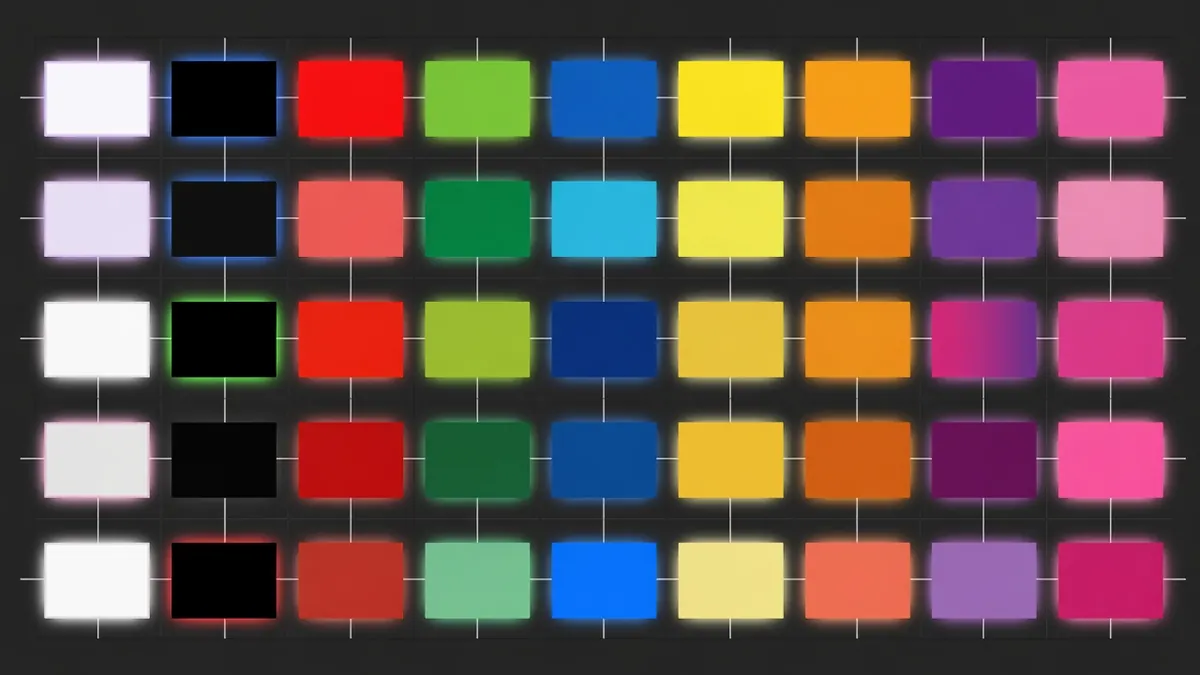
White is only one solid field. Fullwhite also provides dedicated URLs for common inspection and utility colors:
| Screen | Path | Common uses |
|---|---|---|
| White | / | Lighting, cleaning, focus, quick checks |
| Black | /black-screen | Dark rooms, contrast checks, spotting bright stuck pixels |
| Red | /red-screen | Stuck-pixel visibility, solid-color inspection |
| Green | /green-screen | Panel checks; some camera/chroma experiments |
| Blue | /blue-screen | Panel checks and solid blue field tests |
| Yellow / Orange / Purple / Pink | matching /*-screen routes | Extra solid fields for visual testing and variety |
Each color page follows the same interaction model: open → fullscreen → clean field → exit. Switch colors from the on-site color navigation when you want a different field without rethinking the UI.
Green and blue pages can support casual chroma experiments, but a wrinkle-free fabric backdrop and controlled lighting still beat a glossy monitor for serious keying.
White Screen vs Zoom Lighting vs White Image
| Goal | Use |
|---|---|
| Instant solid white field | White Screen |
| Meeting fill with brightness, temperature, wake lock | Zoom Lighting |
| A downloadable pure white file (1080p–4K) | White Image |
| Structured defect scanning | Dead Pixel Test |
Keeping these jobs separate avoids awkward workarounds—like screenshotting a white tab when what you needed was a PNG, or using an untuned white page for a client webinar when temperature control would have helped.
Practical Tips for Better Results
Prefer a second display for lighting. One screen for the meeting UI, one screen as the light, reduces the urge to stare at your own glow.
Mind heat and brightness. A full-white panel at maximum backlight runs brighter and warmer. You do not need maximum OS brightness for cleaning dust.
Avoid looking directly into max brightness for long periods. Use the field as a tool, not a stare target.
Mobile fullscreen varies. iOS and Android browsers implement fullscreen differently; for critical lighting, a laptop panel is more predictable.
Keyboard shortcuts (desktop): F or Space enter fullscreen; Esc exits when the stage owns fullscreen.
FAQ
Do I need to download anything to use a white screen online?
No. Fullwhite runs in the browser with no app and no account.
How do I exit fullscreen white screen?
Press Esc, click the stage again, or use the browser exit-fullscreen control.
Is Zoom Lighting different from White Screen?
Yes. Zoom Lighting adds brightness, color temperature, and optional wake lock aimed at meetings. White Screen is the simple solid white field and brand entry point.
Can I download a pure white PNG from the white screen page?
Use White Image for 1080p, 1440p, or 4K pure white PNG export from canvas.
Are the color screens only for fun?
They are utility fields for inspection, contrast, and solid-color checks. Prank-style fake system screens are intentionally out of scope for Fullwhite v1.
Conclusion
A fullscreen white screen is one of the simplest useful tools on the web: open the page, go fullscreen, do the job, exit. Add black and primary color pages when you are inspecting a panel, switch to Zoom Lighting for meetings, and use White Image when you need a file instead of a glow. Start with Fullwhite’s white screen and jump to the color or tool that matches the task.